PlannedYour pickups: the signed-in customer screen
For: customers who will sign in once the owner puts the screen live
What this screen is for
PlannedSign-in and booking: coming soon. The website has no Sign in button yet, so this screen cannot be opened today. Until then, request a pickup online and follow it on your status page, or call (279) 237-7492. The rest of this page describes the screen as planned.
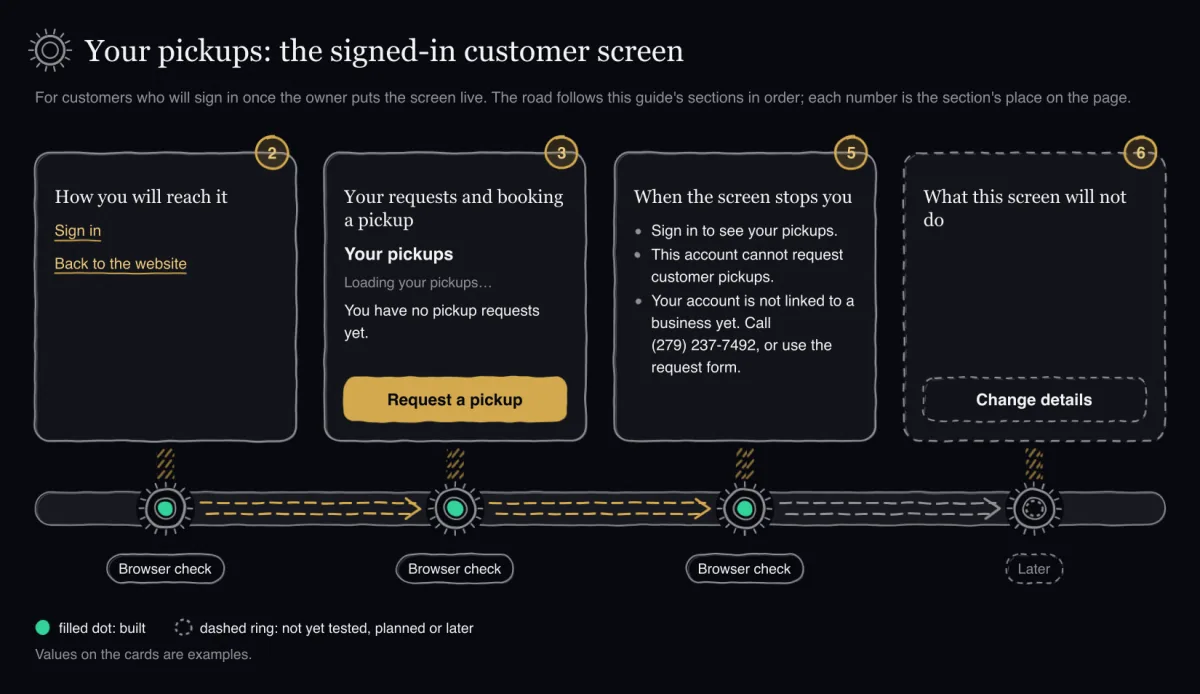
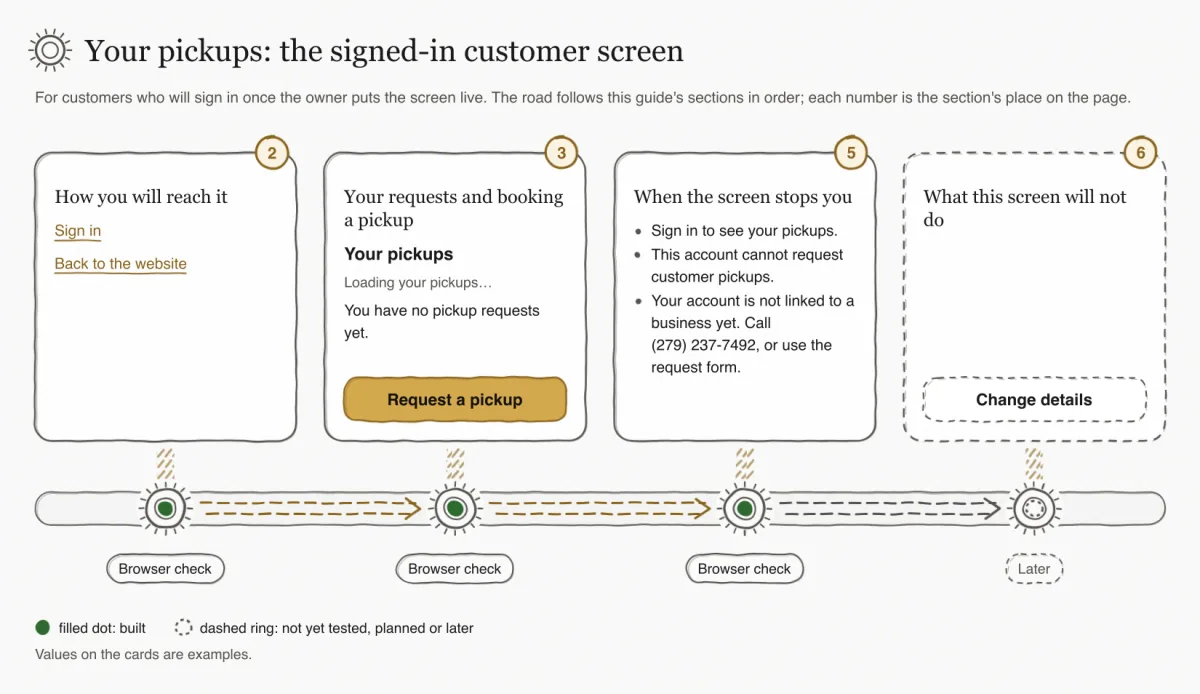
PlannedThe screen is called Your pickups. It is for customers whose account is linked to their business. On it you will see the pickup requests sent from your account and request a new pickup without typing your business details again. In a browser check the screen showed Your pickups with the business name already filled in from the linked record. The full browser check is still pending.
How you will reach it
PlannedComing soon: you will sign in from the website once sign-in opens. Until then the website shows no Sign in button and no link to this screen.
- Enter your email and password in "Email" and "Password". The screen says to use your customer account, which is your Eco Tire account: the same email and password as Financial (app.ecotireca.com).You see: "Sign in" stays greyed out until both fields are filled. A "Security check" box appears only when the site uses one; complete it too.
- Press "Sign in".You see: "Signing in" while it sends, then "Signed in as" with your email and "Customer", your pickups screen and "Sign out".
- If sign-in fails, check the email and password and try again.You see: The server's message, or "Sign-in did not complete. Try again." If the message says your account belongs to another entrance, it is a staff or driver account; use the links shown under the message.
- If you forgot your password, reset it in Financial (app.ecotireca.com), as the line under "Sign in" says.You see: The new password works on this screen as well.
PlannedThe sign-in steps above are taken from the screen's own text. The screens were checked in a browser for theme, layout and accessibility, but no check has walked these steps yet, and the server's own wording for a wrong password has not been seen. Nothing here has been checked on the live site.
PlannedYou will sign in with a customer account that our team links to your business record. The account is your Eco Tire account, the same email and password as Financial. Our team makes the link from the email you sign in with, and it can only be made after you have signed in once. The account itself is made in Financial, not on this screen and not by our team's staff app; this help does not describe Financial's steps.
PlannedThe screen will switch between English and Spanish, and its Back to the website link will take you to the website home page in the language you are reading. In a browser check, the Back to the website link and the Help link went to the website's pages in the screen's language: English on a phone and Spanish on a desktop. The language switch itself was not checked.
Your requests and booking a pickup
PlannedThe screen will list the requests sent from your account, newest first. If you have not sent any yet, it will show You have no pickup requests yet. and you can still book. In browser checks the empty list showed You have no pickup requests yet. with the booking form. After sending, the new request appeared in the list, on phone and desktop. The full browser check is still pending.
PlannedWhile your list loads, the screen will show Loading your pickups….
- To book, you will use Request a pickup. Booking a pickup was checked in a browser on phone and desktop.
- Your business name, address and ZIP code will be filled in from your linked business record. You check them and add the rest. In a browser check the business name was filled in from the linked record.
- The email is your account email. You cannot change it on this screen. In a browser check the form named the account email and had no email field.
- Signed-in customers have no limit on how many requests are open at the same time. The daily limits still apply: 5 requests per phone number and 10 per account in 24 hours.
- When our team suggests a time, you can accept it or decline it on the screen. You can cancel a request after a confirm step. In a browser check, each of these updated the request in place.
PlannedYou see only the requests your own account created. Someone using a status link sees only the request whose link they hold. Neither of you sees a staff note, a staff email or any company location.
Step by step
- Look at your list: the requests sent from your account, newest first. It shows at most the 50 newest, and only requests made from your account, not every request for your business: a colleague signed in for the same business does not see yours.You see: If you have not sent any yet: You have no pickup requests yet.
- Find the booking form below your list, under the heading Request a pickup. It is always on the same screen; there is no button to open it.You see: The booking form. If your account is not linked to a business, the screen shows Your account is not linked to a business yet. Call (279) 237-7492, or use the request form. instead.
- Check the business name, address and ZIP code, then add the rest. They are filled in from your linked business only while those fields are empty.You see: Requests use your account email: {email} The form has no email field. In the browser walk the business name was already filled in.
- Send the request.You see: If something is missing, Please fix {n} item(s) below. appears above the form, each missing item shows its own message next to its field (in the browser walk: the kind of tire and the confirmation box), and nothing is sent. Otherwise you see Request received and Received, not yet confirmed. Our team checks it, and your status page shows the day we confirm., your reference (a code that starts with R-), the link Check your request status, then You can find this request in your account. Questions? Call (279) 237-7492. The status page that link opens has not yet been seen in a browser.Meanwhile: Our team sees the new request on the staff desk. Its history line there reads "by the customer (signed in)"; your account identifier is never shown.
- Find the new request at the top of your list.You see: Received, not yet confirmed. This page shows the day once our team confirms it. with the requested day and time window, and the button Cancel this request.
- When our team suggests a time, accept it or decline it.You see: We suggested {day}, {window}. Accept it below, or call (279) 237-7492 to choose another time. Under the decline button: Declining closes this request. To choose another time, call (279) 237-7492. If you accept: Confirmed for {day}, {window}. and the notice Thank you. Your pickup is confirmed. above your list. If you decline: You declined the suggested time, so this request is closed. Call (279) 237-7492 to set up a pickup. and the notice You declined the suggested time. This request is now closed. above your list. Not yet seen in a browser.Meanwhile: The suggested time comes from our team on the staff desk.
- To cancel a request, press Cancel this request. The screen asks you to confirm.You see: Cancel this pickup request? This cannot be undone online. with Cancel this request and Keep my request. If you confirm: This request was cancelled. and the notice Your request is cancelled. above your list. Not yet seen in a browser.
PlannedEach request in your list shows one status sentence: We suggested {day}, {window}. Accept it below, or call (279) 237-7492 to choose another time. while you can accept a suggested time, You declined the suggested time, so this request is closed. Call (279) 237-7492 to set up a pickup. after you decline one, and otherwise the sentence for its status. After you accept, decline or cancel, that sentence is replaced in place from the server's reply, without reloading the page, and a notice line appears above the list. In a browser check, accepting and declining a suggested day and cancelling with its confirm each updated the row in place on a tablet. The status sentence texts themselves were not checked. An earlier contrast problem with the buttons on each request in the list has been fixed and checked again in a browser.
When the screen stops you
PlannedThree messages stop you before you see any requests. Two more offer a way to try again. In browser checks, a failed list showed We could not load your pickups. Try again, or call (279) 237-7492. with its Help link, the form stayed and a reload recovered. Sign in to see your pickups. showed after the session ended. Your account is not linked to a business yet. Call (279) 237-7492, or use the request form. showed with the link to the public form, and linking the account restored the screen. A staff account is refused at the customer entrance and never sees this screen, but the not-a-customer message text has not been checked in a browser. The other messages have not been seen in a browser.
| Message or button | When it shows | What to do |
|---|---|---|
| Sign in to see your pickups. | You are not signed in, or your session has ended. | Sign in again from the website. |
| This account cannot request customer pickups. | The account you signed in with is not a customer account, for example a staff account. | Sign in with your customer account. |
| Your account is not linked to a business yet. Call (279) 237-7492, or use the request form. | Your account is not linked to a business yet. | Call, or follow the link to the online request form. |
| We could not load your pickups. Try again, or call (279) 237-7492. | Your requests could not be loaded. | Try again, or call. The booking form stays available. |
| Reload your pickups | A request changed somewhere else before you acted on it. This is the proposed mapping; this message has not yet been seen in a browser. | Reload your requests, then act again. Nothing is done twice. |
PlannedThe signed-out and not-a-customer messages, the not-linked notice and every problem notice are each followed by a Help link to the matching section of If something goes wrong. Those sections cover: signed out, not a customer account, account not linked, too many tries, a request that changed, a suggested time no longer offered, connection problems, server errors and missing required fields.
What this screen will not do
LaterChanging a request after you send it comes later. The screen does not offer it yet. To change a request now, call us.
LaterAlso later on this screen: history, account settings, multiple locations, recurring pickups, certificates, invoices and notifications.